Five controls from team check to continuation
The preparation screen separates inspection from commitment. That distinction matters: you can compare every set without accidentally changing the opener, then make the lead choice explicitly. Once battle begins, Fight, Pokémon, and Info remain separate command panels, and the battle log records what the simulator resolved.
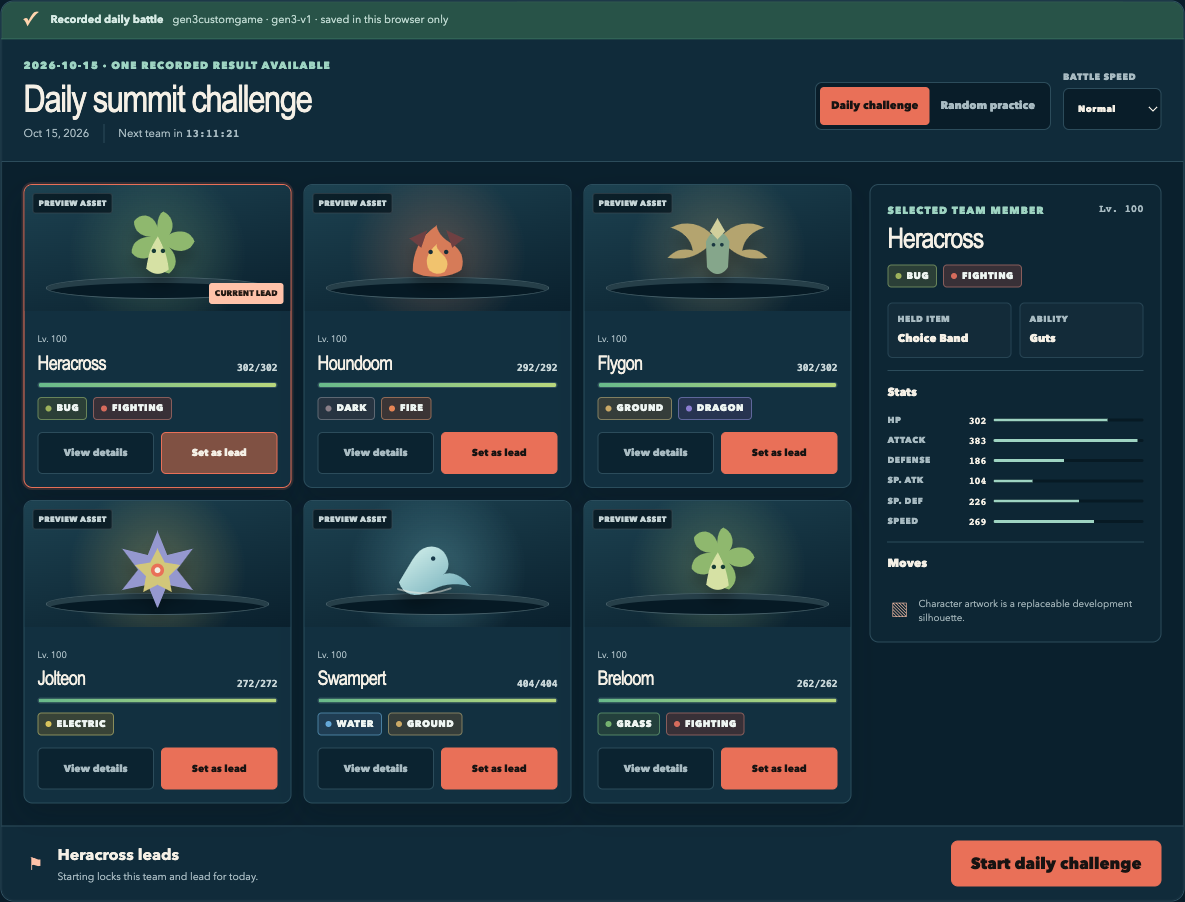
- 01
Inspect the team
Use View details to read a member’s four moves, types, held item, ability, and actual level-100 stats. Viewing never changes your lead.
- 02
Set the lead
Choose Set as lead on the member you want to face Pikachu first. The Current lead flag confirms the choice before the challenge begins.
- 03
Choose an attack
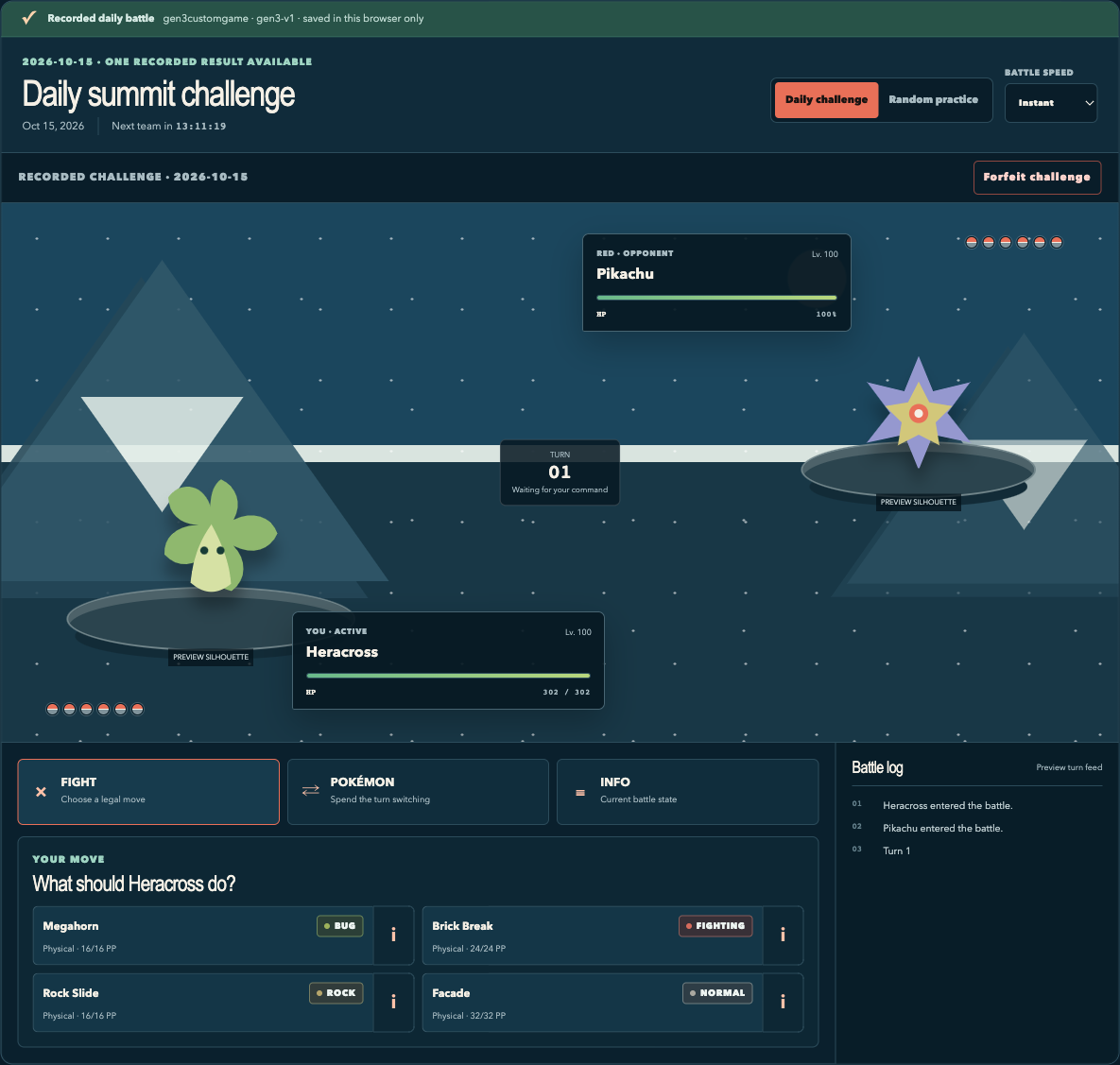
Open Fight and select the main move button. The adjacent information button explains power, accuracy, category, and the current PP count without submitting the move.
- 04
Switch deliberately
Open Pokémon and choose an available teammate. A voluntary switch uses your action, so the incoming member may take Red’s attack. After a faint, the interface requires a legal replacement.
- 05
Continue the challenge
Every recorded command creates a verified local checkpoint. Close or refresh safely, then return to the Daily challenge tab to continue the same dated battle.
Daily Challenge, Random Practice, and Replay Today
The modes share the same battle engine, Red roster, and legal-request system, but they do not share result storage. Use the labels in the arena to confirm which mode is active before starting.
| Mode | Team | When available | Affects record? |
|---|---|---|---|
| Daily Challenge | Six different configured species determined by local date and game version | One unsettled or completed result per local challenge date | Yes. Win, loss, or tie is saved once. |
| Random Practice | A newly generated six-member team from the same validated player pool | Any time, including while a daily battle is unfinished | No. It cannot replace the saved daily team or result. |
| Replay Today | The preserved initial team for today’s completed daily challenge | After today’s result has settled | No. Replays never change wins, losses, ties, win rate, or streak. |
If you open Random Practice during an unfinished daily battle, the recorded checkpoint remains untouched. Returning to Daily Challenge resumes the original team, lead, challenge date, PP, HP, status, field state, random state, and turn history; switching modes does not draw a second recorded team.
Saving, refreshing, forfeiting, and crossing midnight
Starting the daily battle stores the six team members, chosen lead, challenge date, game-data version, engine state, AI state, random state, and the action log in this browser. Each successful command updates that checkpoint. Reloading or closing the page is not a loss. When you return, the game verifies and restores the checkpoint; if the engine snapshot cannot be used, it can rebuild the battle deterministically from the original seed and recorded actions.
Forfeit challenge is different from closing the page. It asks for confirmation and then records a loss. A natural engine tie is stored as a tie, not converted to a win or loss. Settlement is idempotent, so refreshing a result or having two tabs open cannot intentionally add the same challenge twice.
The reset countdown targets the next midnight in your device’s local time zone. If midnight passes while a battle is unfinished, that battle keeps its original date and team. Finish it or forfeit it first; then the current local date can start. A win streak counts wins on consecutive challenge dates. A loss, tie, or a completely missed date interrupts the streak.
Mouse, touch, and keyboard controls
On desktop, click the named buttons. On a phone or tablet, the same controls are sized for touch and stack into a single-column battle command area. There are no hidden swipe gestures and no numbered move hotkeys in this release.
Keyboard operation uses standard browser behavior only: press Tab and Shift + Tab to move through links, buttons, and the speed selector; use Enter or Space to activate the focused button. A visible focus ring marks the current control. The interface also honors reduced-motion preferences by removing the normal command-resolution delay animation.
What happens when loading or saving fails
If browser storage is unavailable, Daily Challenge is disabled and the page explains that recorded progress cannot be protected. Random Practice remains playable because it does not write the daily record. If saved data is damaged or belongs to an incompatible game version, the game does not silently change the team or award a result.
The recovery notice offers the saved text for copying and an explicit Reset local data action. Resetting requires confirmation and removes the browser’s local challenge history and unfinished battle. Use it only after preserving any recovery text you need. If another tab writes a newer checkpoint, the older tab stops and asks you to reload instead of overwriting the newer state.
After a result, Share Result copies only the challenge date, outcome, turns, and surviving team count. If clipboard access fails, the page displays a selectable text field rather than claiming that copying succeeded. Team members and moves are deliberately omitted.